
Add Taly Snippet
How to add the Taly snippet to your Shopify product page?
Adding the Taly Snippet to your Shopify Store is simple and straightforward.
Follow the steps below to integrate the Taly Snippet into your Shopify store:

Step 1: Log in to your Shopify admin
Sign in to your Shopify store.
From the left sidebar, under Sales channels, click Online Store.
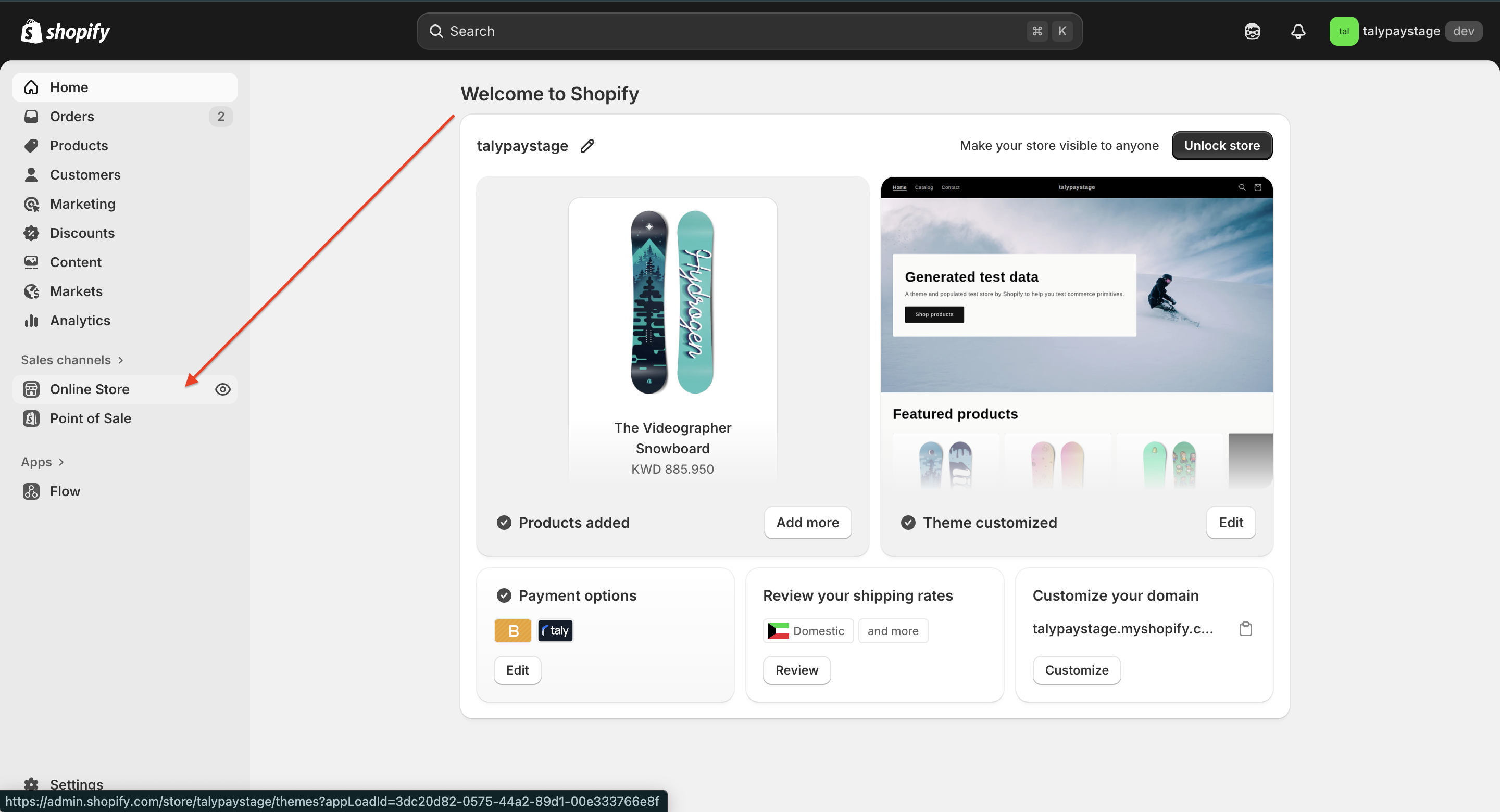
Step 2: Go to Themes
After clicking Online Store, select Themes.
You’ll see your current theme at the top.
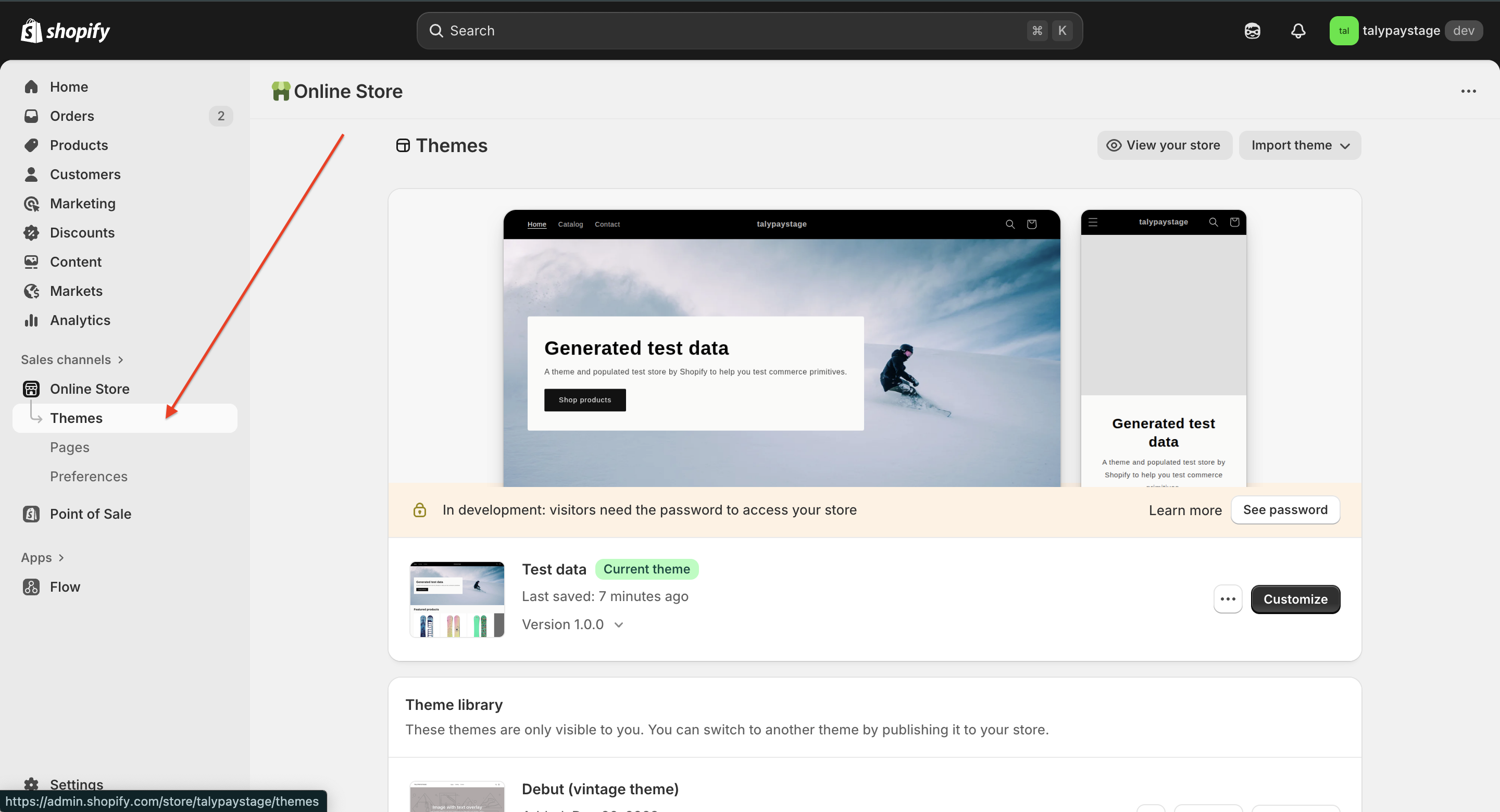
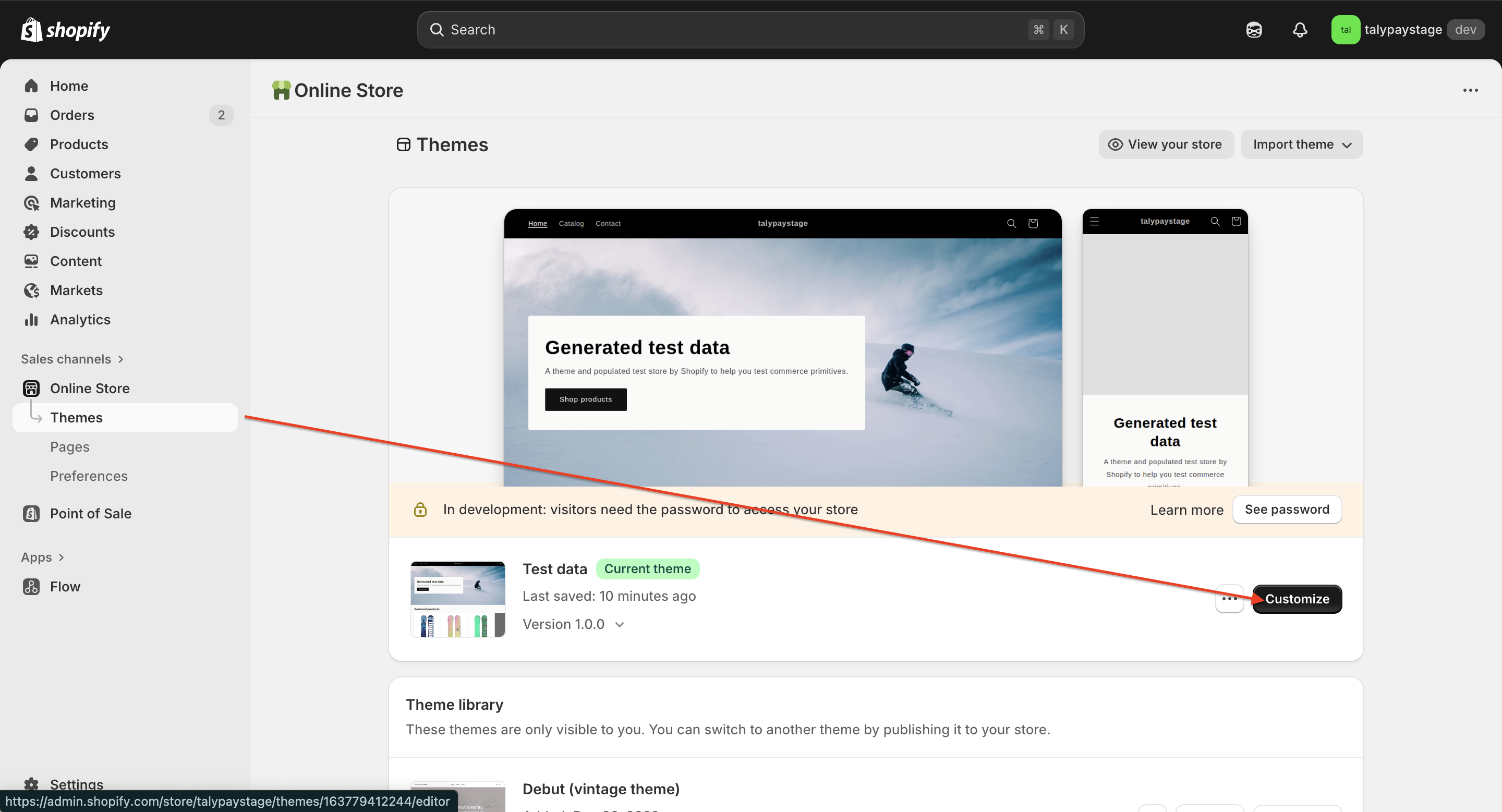
Step 3: Customize your current theme
In the Current theme section, click the Customize button on the right.
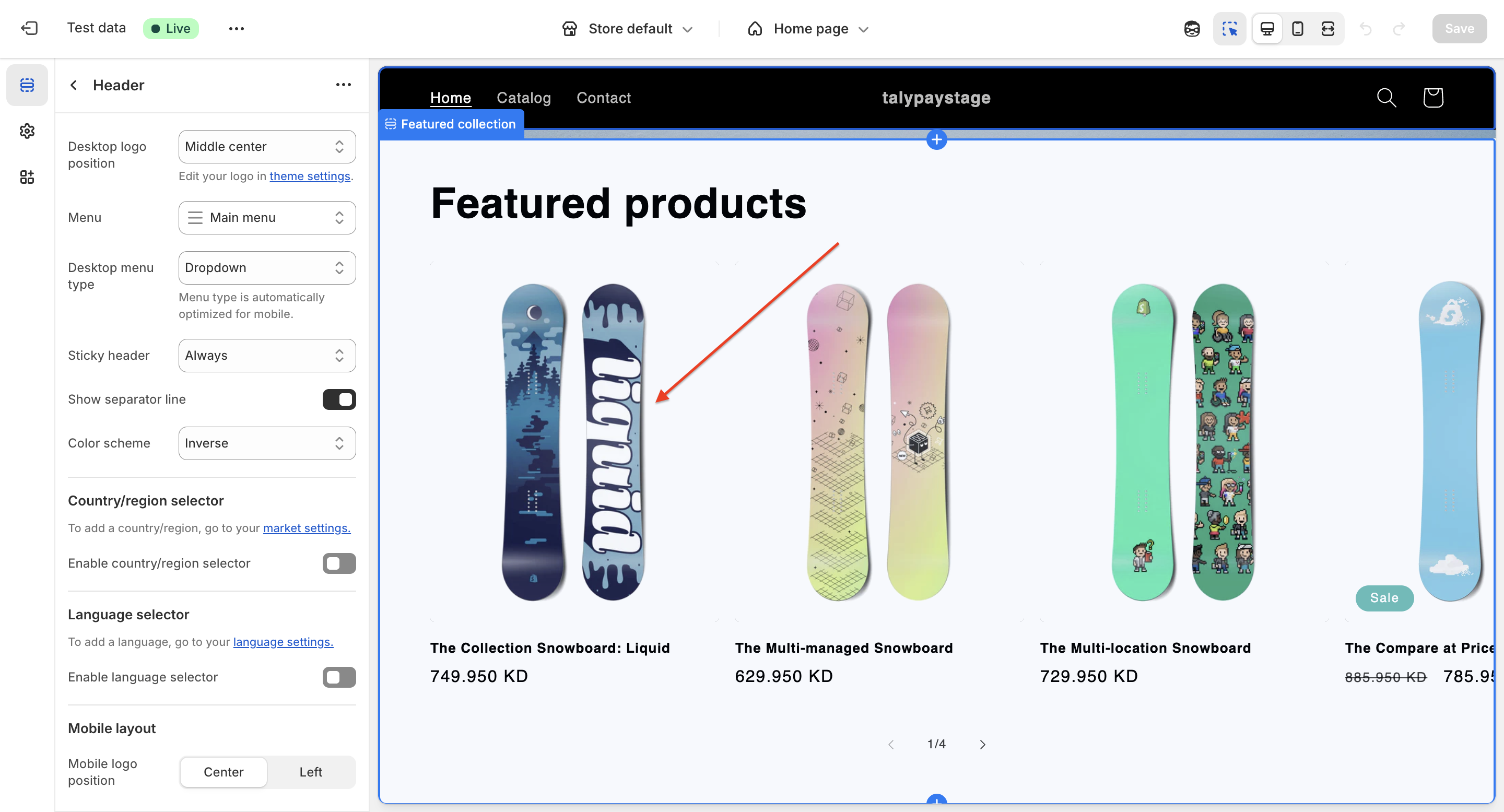
Step 4: Open the Product page template
You’ll enter the theme editor.
At the top middle of the screen, open the template selector (it shows which page you’re editing, like “Home page”).
Click on any product (in order to access the product page).
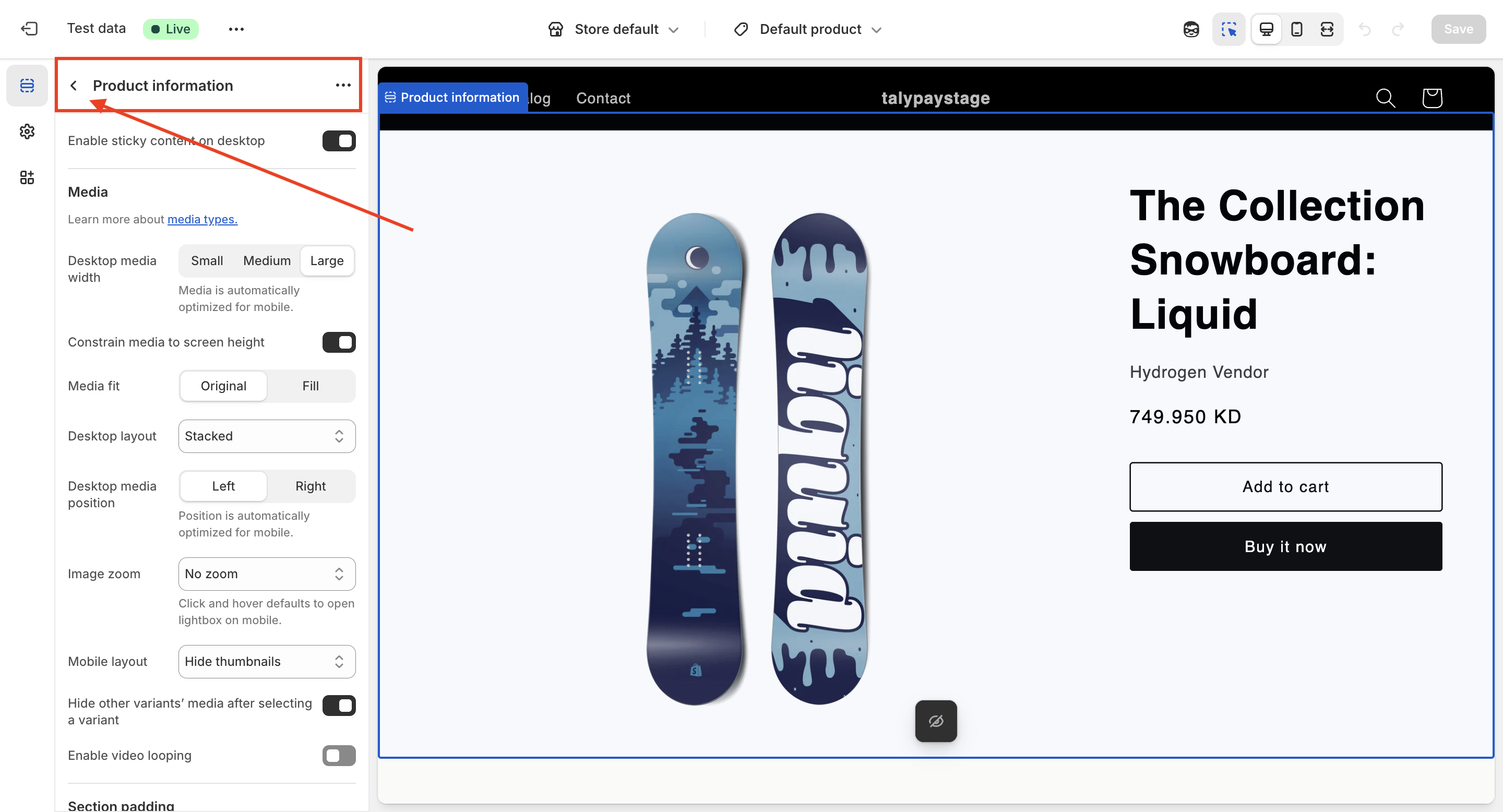
Step 5: You will find yourself in the “Product information” section
On the left panel, click the arrow before the "Product information".
You will view the block that controls the title, price, Buy button, etc.
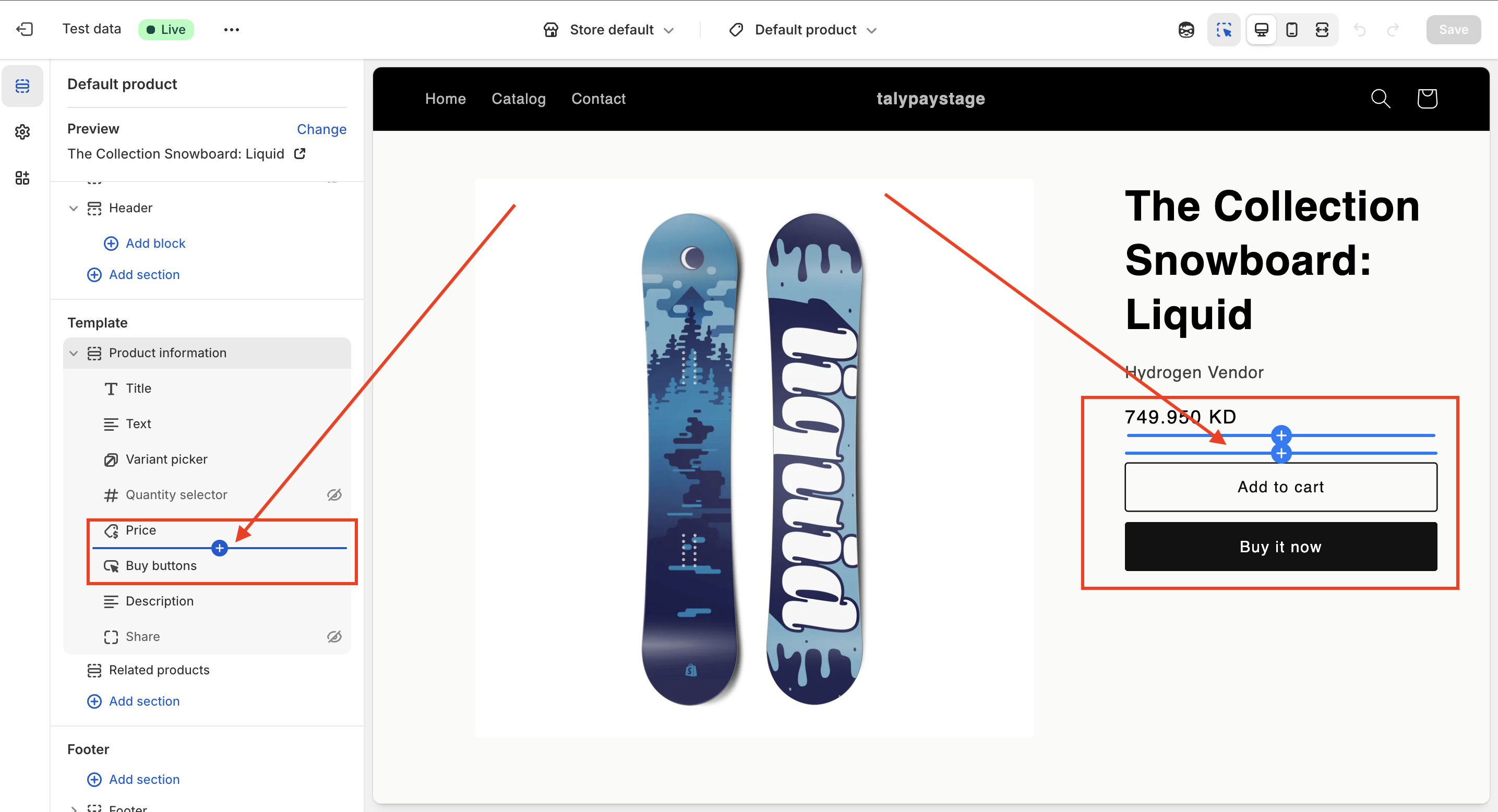
Step 6: Add a new block under the price
Hover your mouse between the "Price" and "Buy Button" and Click the small ➕ "Add block" button in that area (the plus sign next to the list of blocks).
A menu will pop up.
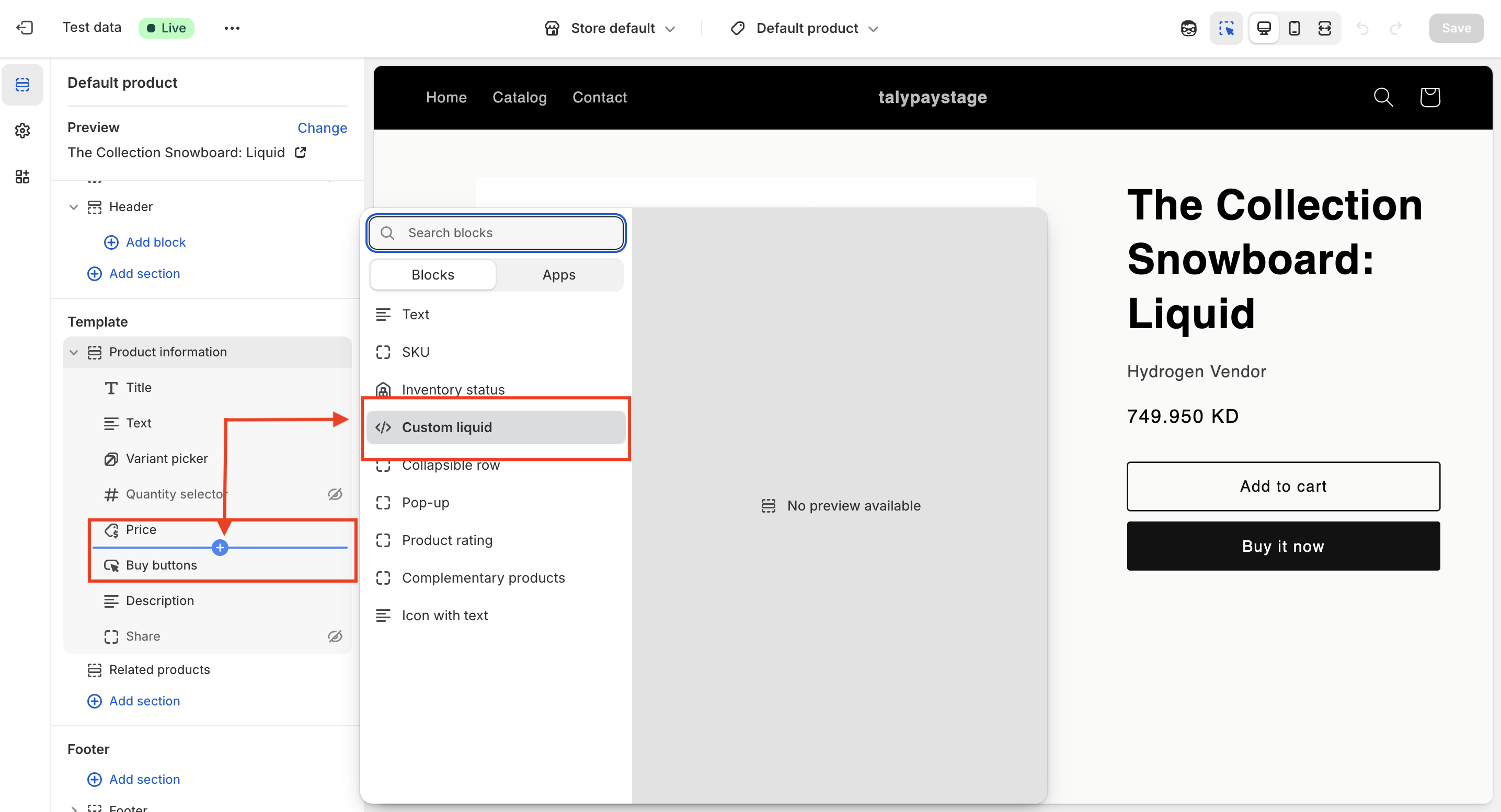
Step 7: Choose “Custom liquid”
From the block menu, select Custom liquid.
This will create a new “Custom liquid” block in your product page layout.
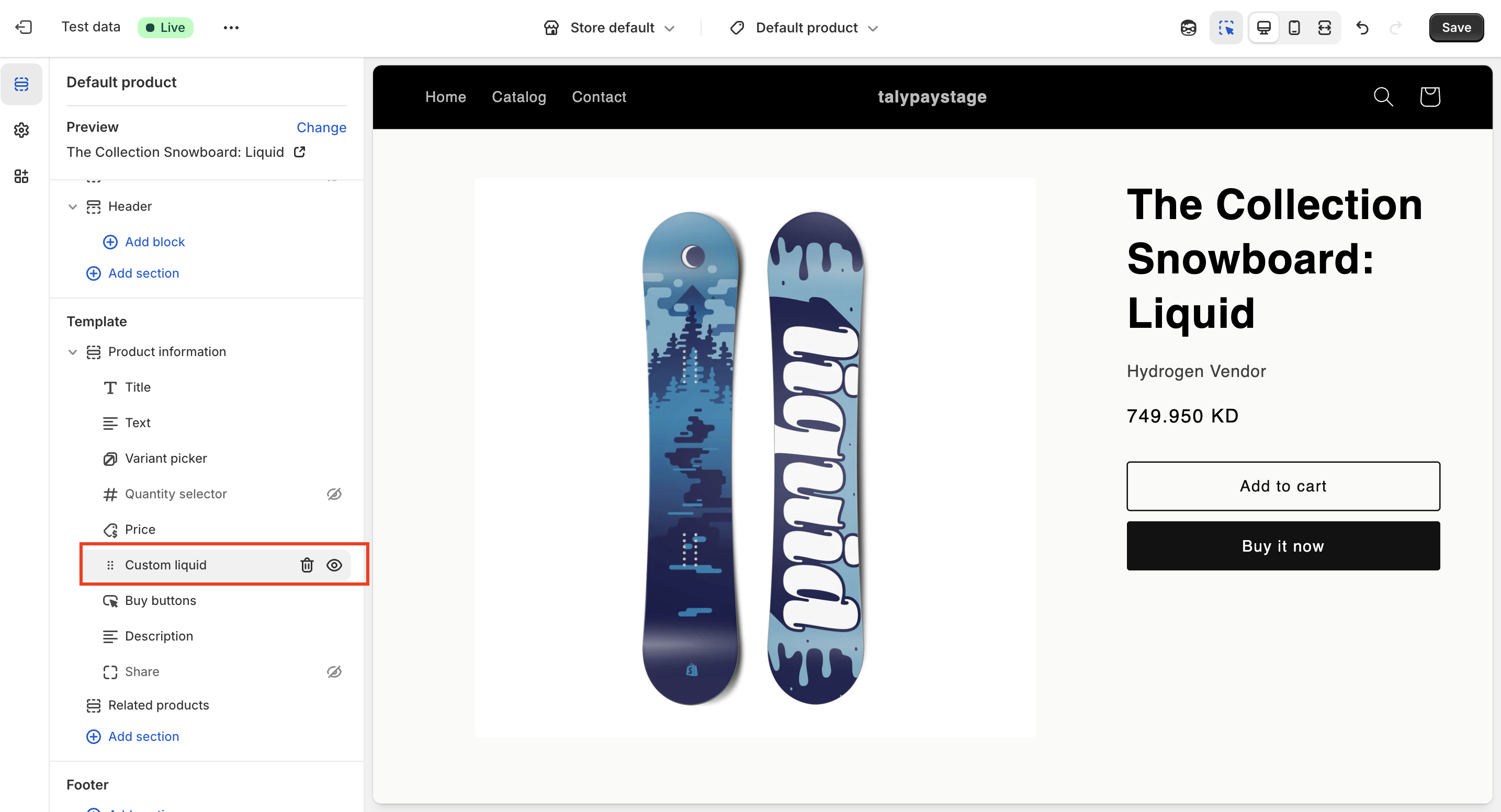
Step 8: Enter the customer liquid block
Click on the new Custom liquid block you just added.
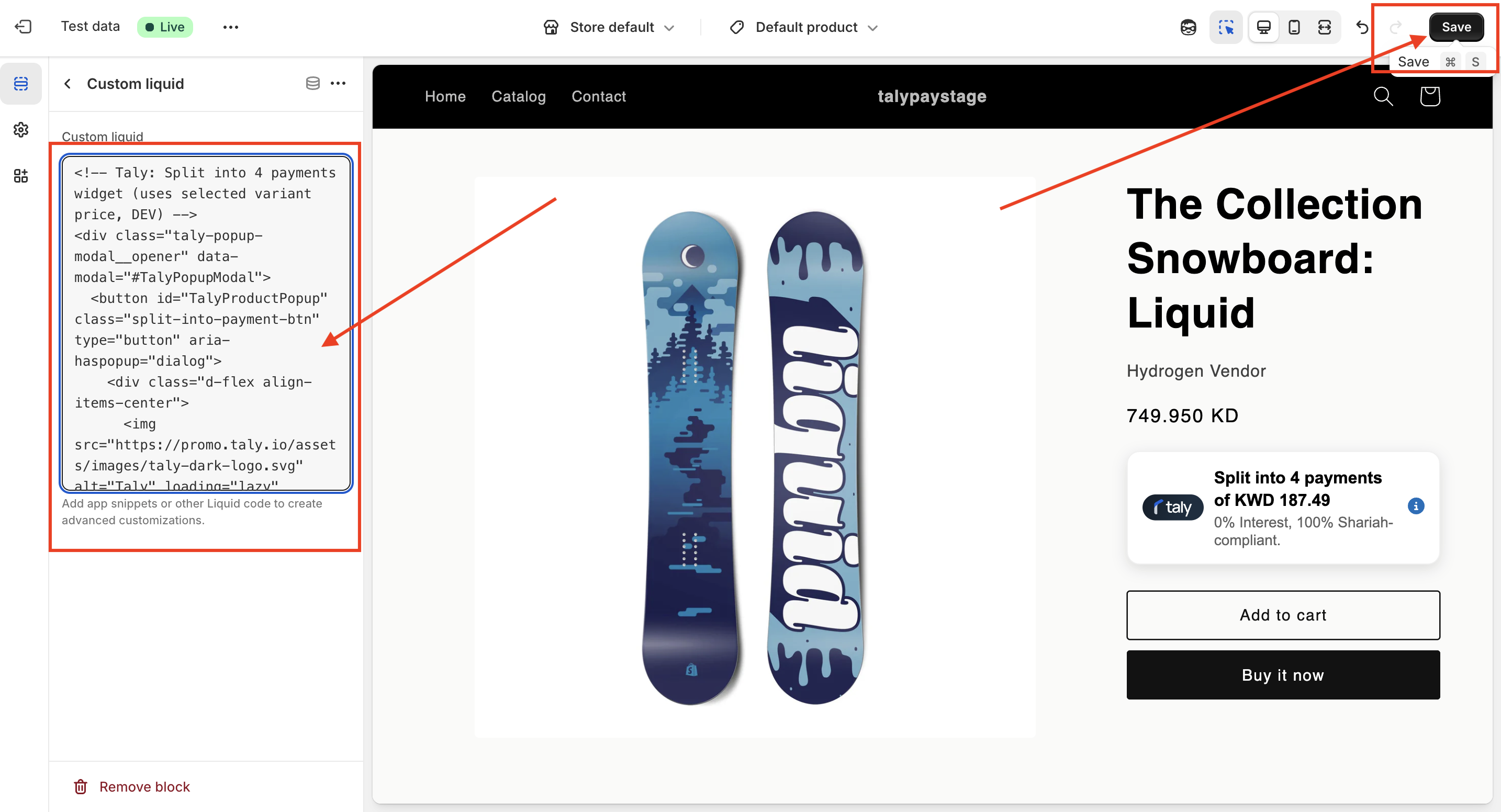
Step 9: Paste the liquid Code & Click Save
In the code box on the left, paste the Taly widget snippet (the HTML/Liquid code we provide you).
The preview on the right side of the screen will show the Taly widget (for example: “Split into 4 payments…”).
Click Save (top right of the screen).
The Taly messaging widget is now live on your product page, under the price / above the Add to cart button.
Updated 12 months ago