
Adding a new user
Add team members and set roles to customize access and permissions. Enhance collaboration and security effortlessly.
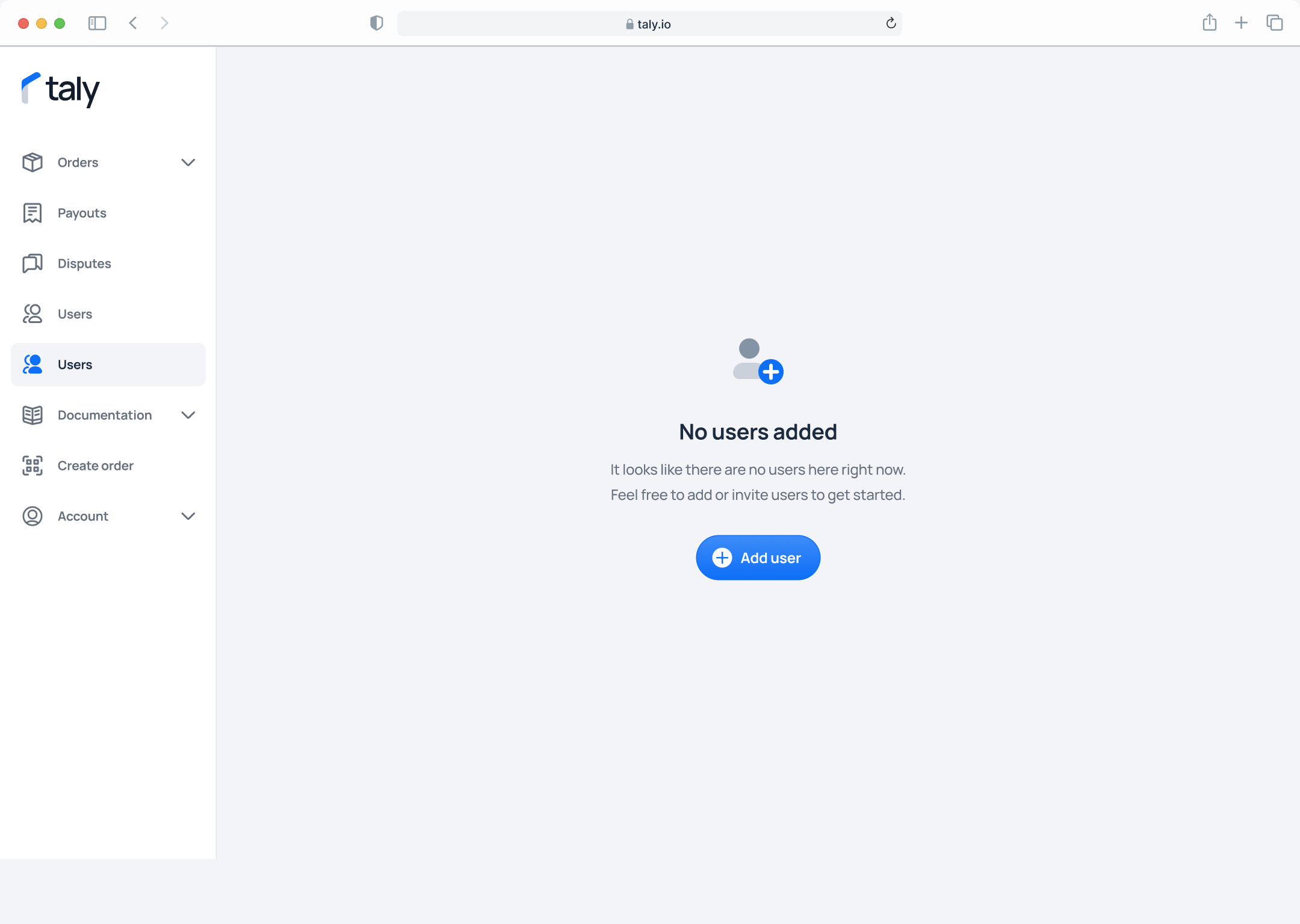
Step 1. On the left sidebar, click on Users, then tap on the Add user button.
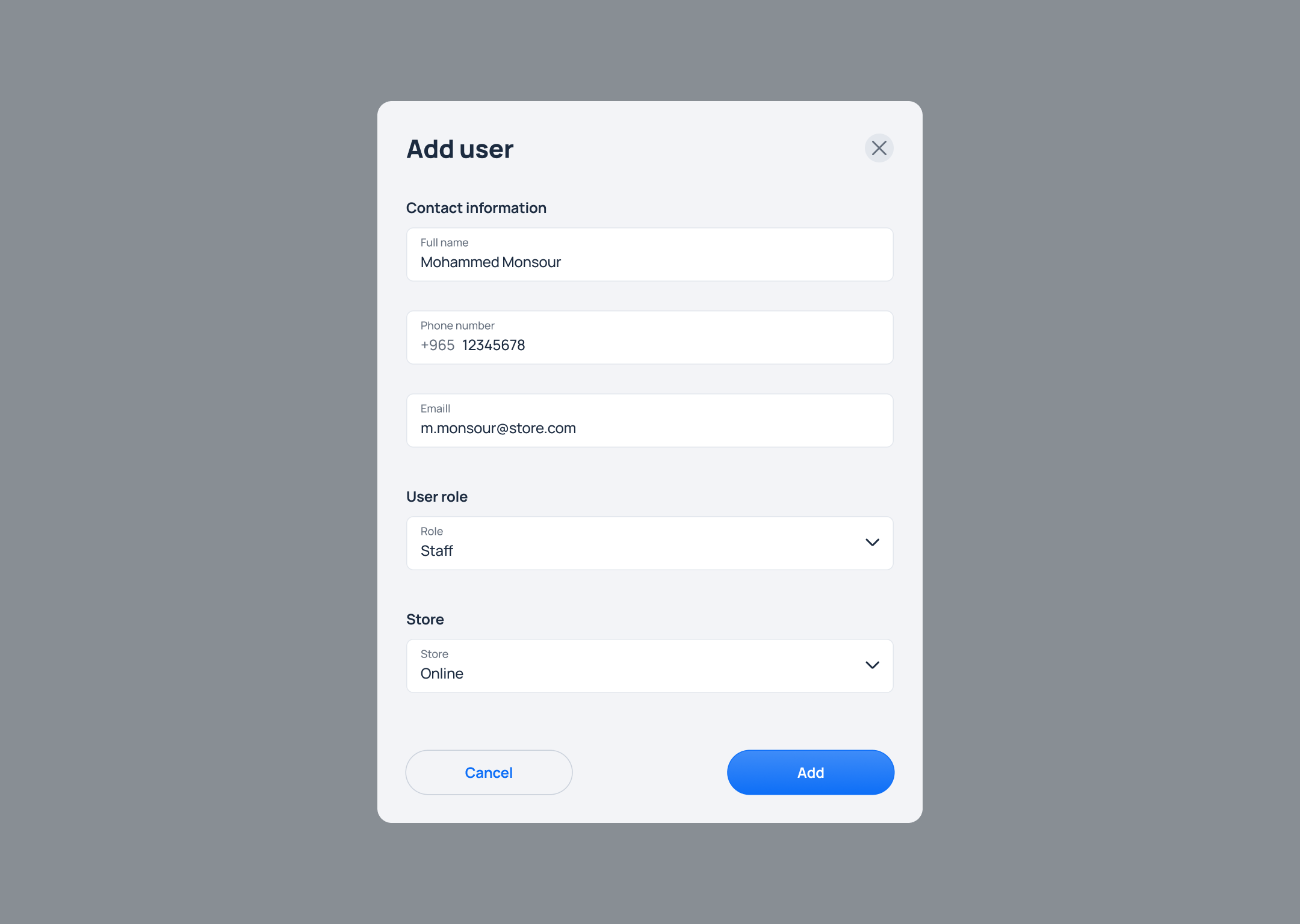
Step 2. Enter the user Full name, Contact information, Role and Store. Then click on Add button so an email will be sent to the user to finalize the process.
To read more about user roles, read here
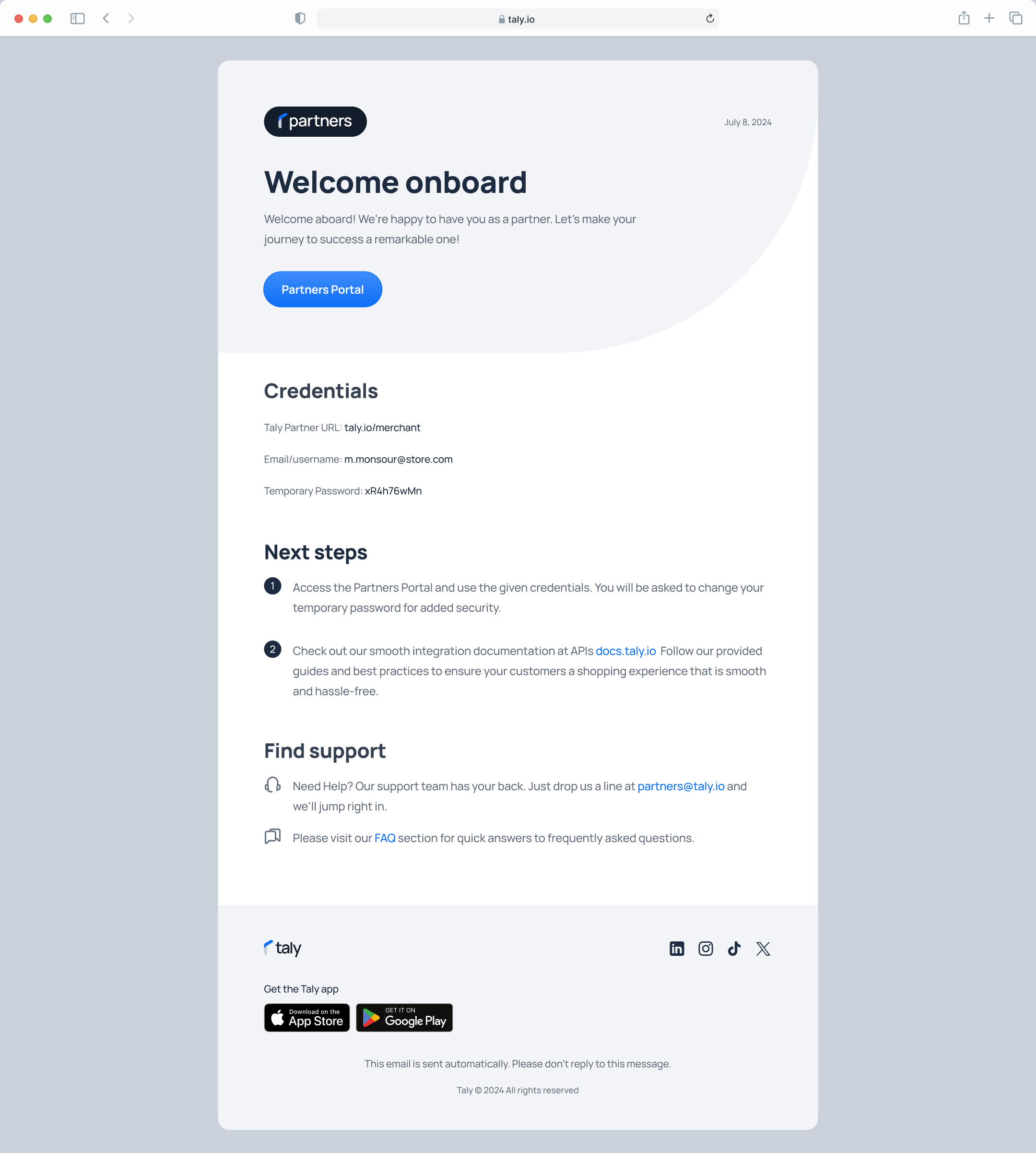
Step 3. An activation email with password setup instructions will be dispatched to the user's email. This link is valid for 72 hours only.
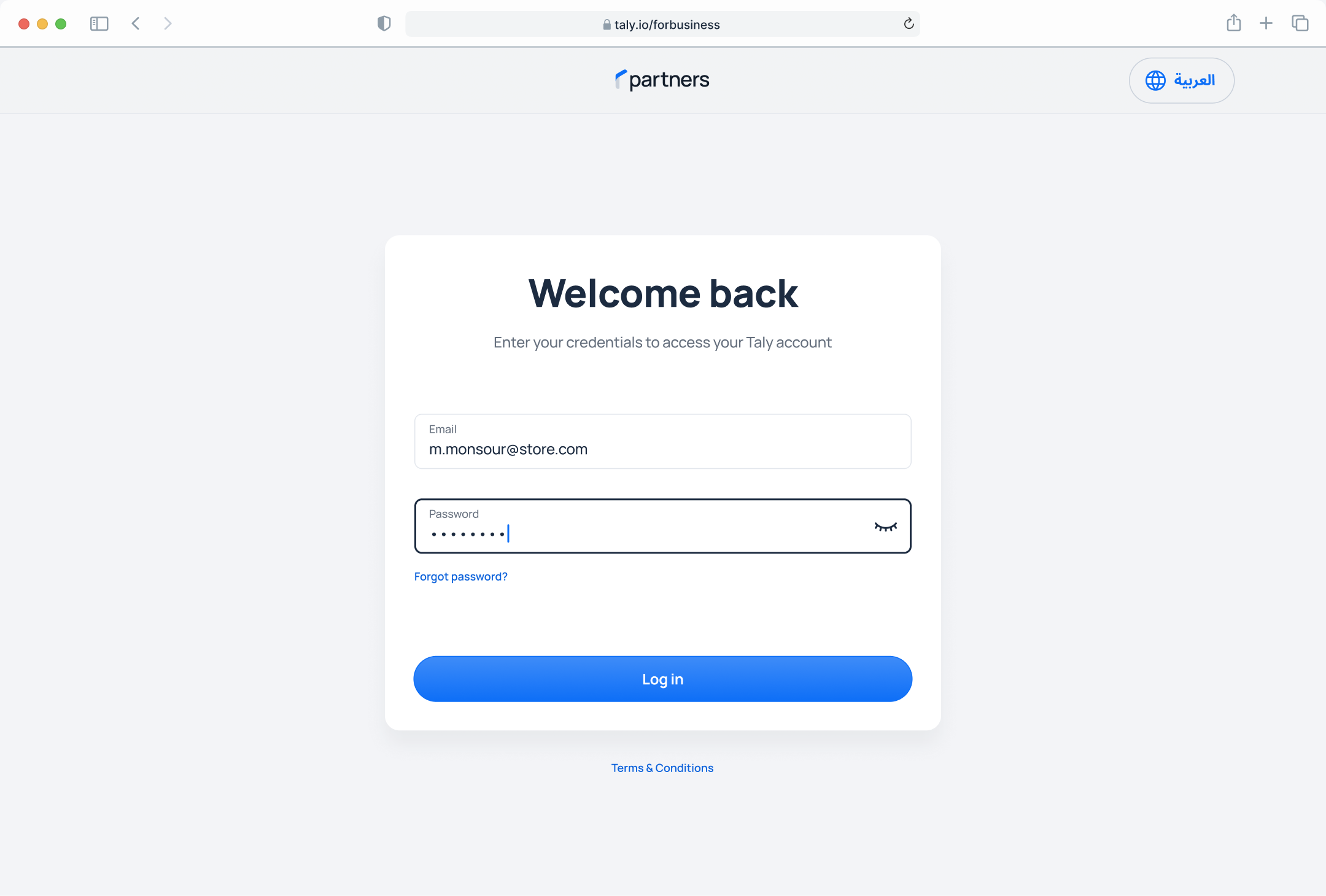
Step 4. Enter the temporary password to activate your account, then update it to your preferred password.
Updated over 1 year ago
Did this page help you?