
WooCommerce
This explains how to integrate Taly Payment with WooCommerce for Partners.
Install via WordPress
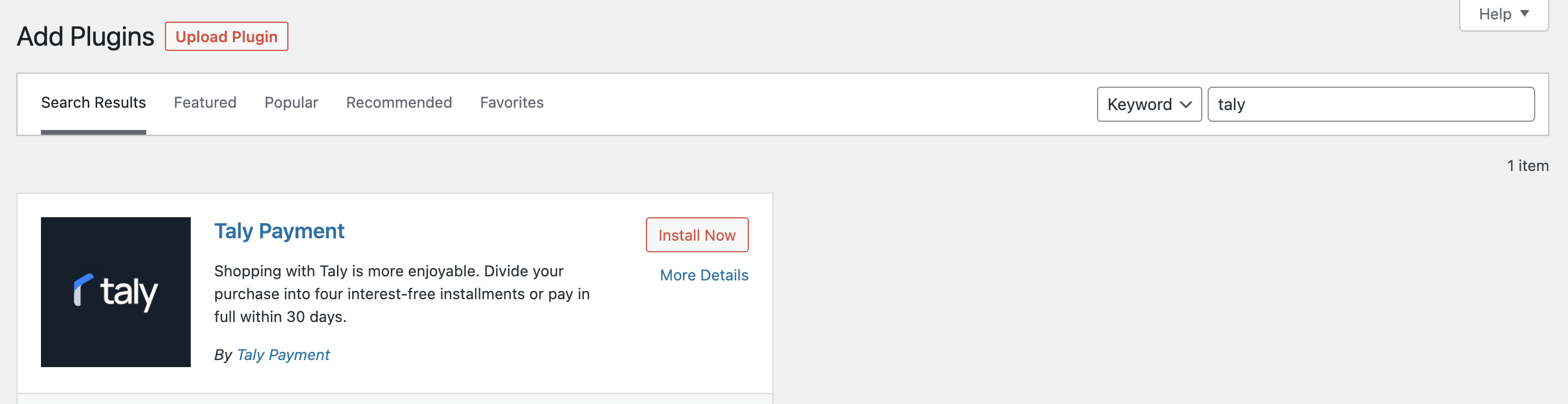
Go to your Wordpress admin dashboard => Plugins => Add New => Search for Keyword "Taly" => Click on "Install Now"
Manual installation
1- Download WooCommerce plugin from Wordpress marketplace (Taly Direct Installation).
2- Go to your Wordpress admin dashboard => Plugins => Add New => Upload plugin => Select the downloaded plugin package => install
You may also extract the downloaded package, then copy all the files and directories in the plugin and place it on your web root folder wp-content/plugins
Activate the plugin
Go to your Wordpress admin dashboard => Plugins => installed plugin => navigate to "Taly" plugin => click on "Activate"

Taly plugin Configuration
Once the plugin has been activated, Taly will be displayed at the section:
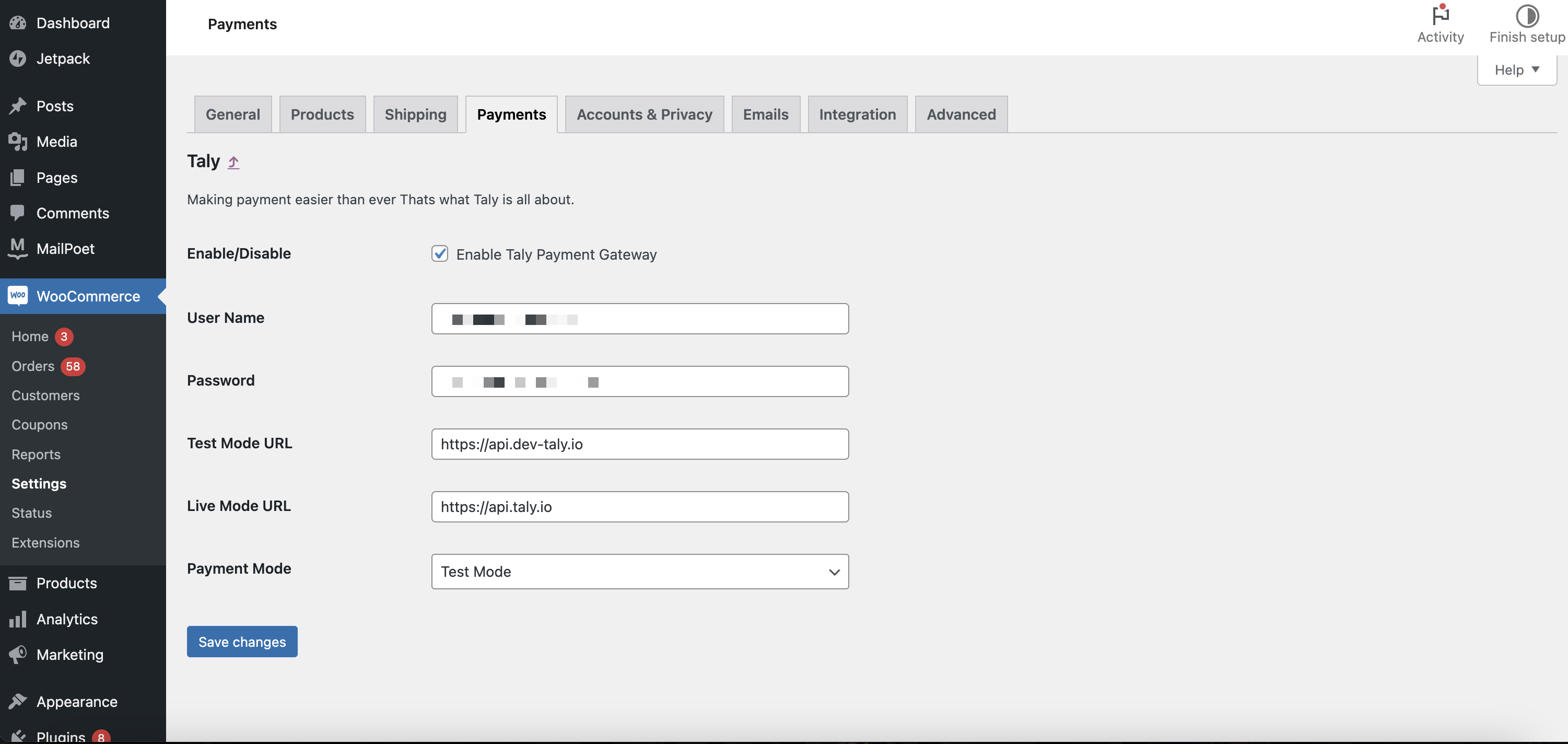
WooCommerce => Settings => Payments => select Taly and click "Manage"
Or Plugins => Taly => Settings => Payments
-
Enable/Disable:
- Yes: will be enabled by default to show the payment method on your checkout
- No: To disable Taly payment from your checkout
-
Test Mode URL: Taly sandbox Environment URL
-
Live Mode URL: Taly live Environment URL
-
Payment Mode:
- Test Mode: This is the sandbox mode which will be used for testing purposes.
- Live Mode: This is the production mode which will be used on live website for
payment purposes.
-
Username: Your merchant API key provided by Taly.
-
Password: Your merchant API secret key provided by Taly.
Click "Save changes" to apply the changes
Order statuses
We are following the standard order statuses for WooCommerce and if you are not following the standards you have to map the statuses of the order according to Taly order statuses responses:-
Taly order statuses:-
- INITIATED : Once your merchant requested to create an order through Imitate order API and order is created with Taly
- INCOMPLETED: if the customer got redirected to Taly's secure checkout page and he didn't complete the order for more than 15 minutes the order automatically marked as incompleted (no redirection happens here you call get order details API to get the order status or cancel the order at your end if you didn't get a response from us after 30 minutes
- CONFIRMED : once the payment is authorized and completed by the customer and the customer will get redirected to the merchant with Success status in the URL response, example (https://yourmerchant.com/checkout/?status=success)
- REJECTED : if the payment is rejected or the customer decided to cancel the order and go back to the merchant website we will redirect the customer to the merchant with status, example (
https://yourmerchant.com/checkout/?status=cancel)
Integration test
- Coordinate with your account manager to get the Sandbox and live Keys
- After you get your Keys, first you have to do the integration on Sandbox to test it before you start the production integration.
- After completing your integration you have to test the below scenarios as minimum (Contact your account manager to coordinate this test)
- make a success order.
- make a failed order.
- do a full refund for a success order (Cancel the full order)
- do a partial refund for a success order (refund amount less than the full order amount)
- cancel an order after you do a partial refund for the same order
- ensure that everything works as expected.
- Before going live Taly needs to check the result of the integration and confirm the test checklist
- After you take the confirmation from Taly's account manager hence you can connect your production environment and activate Taly as a payment method at your checkout.
Updated 12 months ago