
Magento
This explains how to integrate Taly Payment with Magento 2 for Partners.
A) Install via composer (Recommended)
- Download Magento2 plugin from Magento marketplace (Taly at Magento).
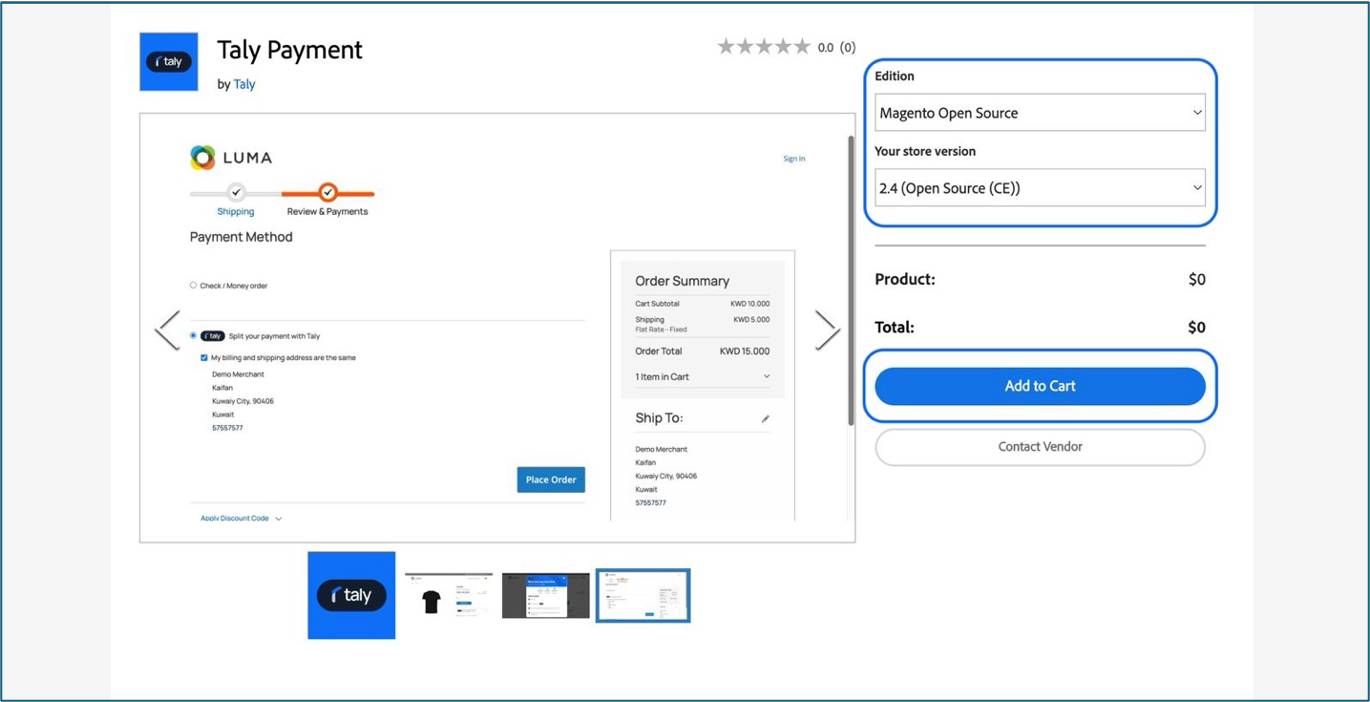
- Open your terminal to run the following command on your Magento
Directory
Terminal: $ composer require talypay/talypays
$ composer require talypay/talypays- Enable the module by running the following command:
$ php bin/magento module:enable Talypay_Talypay
$ php bin/magento setup:upgrade
$ php bin/magento setup:di:compile
$ php bin/magento setup:static-content:deploy -f
$ php bin/magento cache:flush
$ php bin/magento cache:clean
B) Plugin Configuration
- Configure API Keys
- Navigate to:
Admin Panel > Stores > Settings > Configuration > Sales > Payment
Methods > Taly Payment
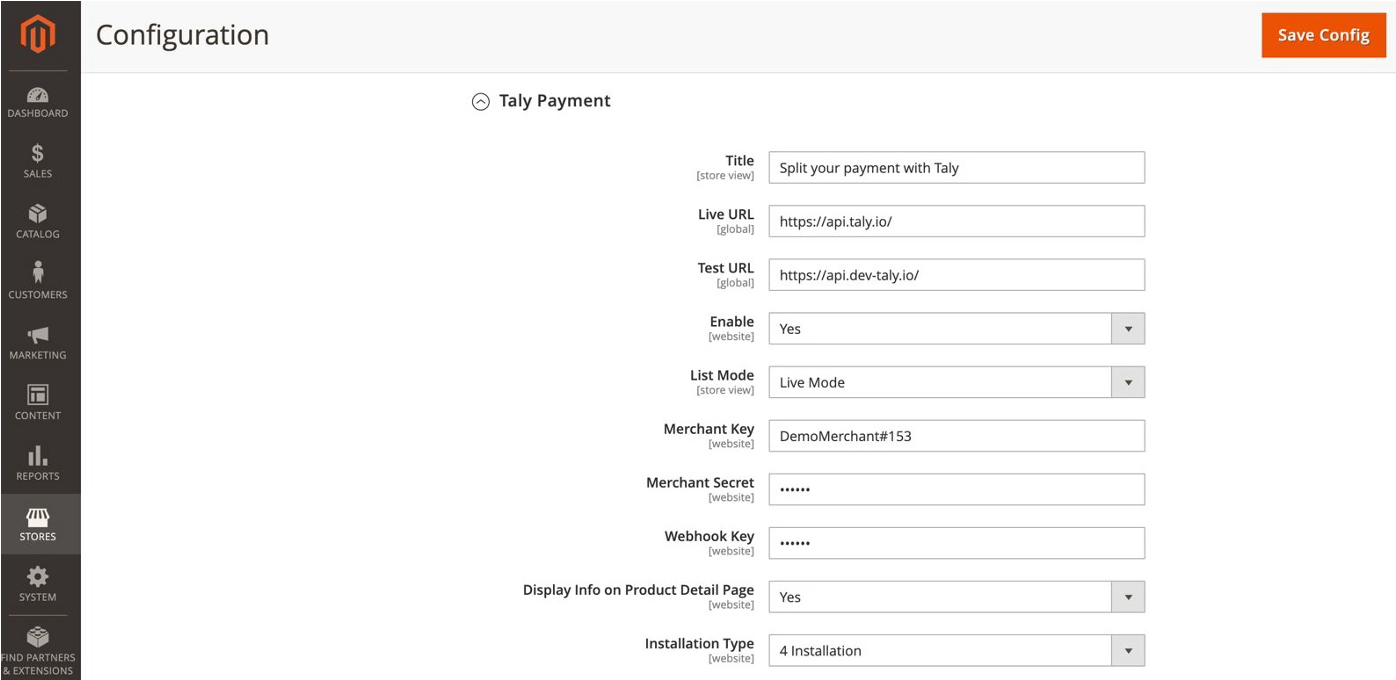
- Enter the following details:
Title: Split your payment with Taly
Live URL: Insert Live URL
Test URL: Insert Test URL
Enable: YES (enabled only after Taly Payment verification)
List Mode: **If you would like to test a payment, use test mode.
- Change to live mode when you’re ready to accept live
transactions.
Merchant Key: **Provided by Taly payment
Merchant Secret:** Provided by Taly payment
- Display Info on Product Page:** YES (this will display the stripe
on the product page, which is essential to show your customer
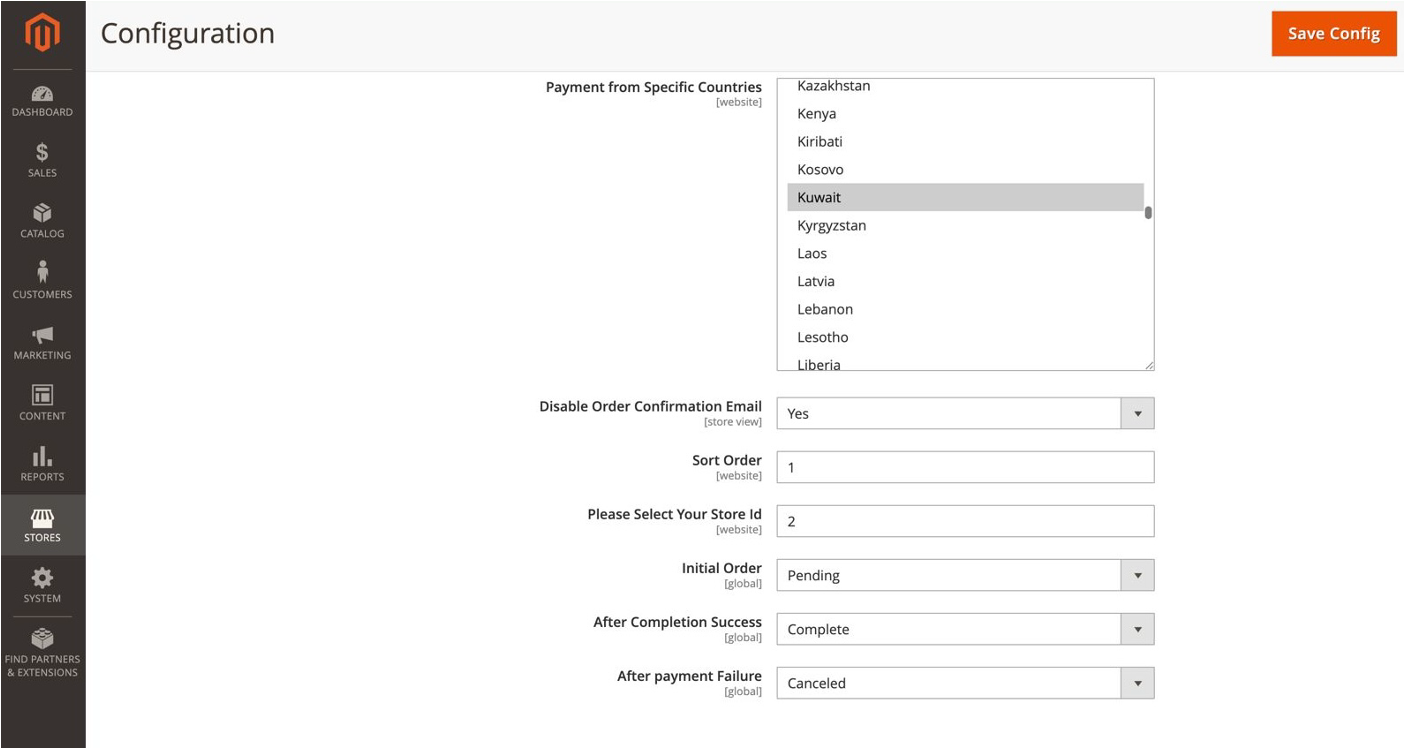
the payment plan when splitting the payment with Taly) - Payment from Applicable Countries:** Choose “Select
Countires” - Payment from Specific Countries:** Choose “Kuwait”
- Sort Order:** 0 (You can increase or decrease as per your
convenience)
C) Order Status
We are following the standard order status for Magento and if you are not following the standards you have to map the status of the order according to Taly order statuses responses as follows:
Taly Order Status:-
- Pending : Once your user requested to create an order through initiate order API and order is created with Taly
- Canceled: if the customer got redirected to Taly's secure checkout page and didn't complete the order for more than 15 minutes the order automatically marked as Canceled. If the payment is rejected or the customer decided to cancel the order and go back to the merchant websitel
- Complete : once the payment is authorized and completed by the customer and the customer will get redirected to the merchant with Success status in the URL response, example
D) Integration test
- Coordinate with your account manager to get the Sandbox and live Keys
- After you get your Keys, first you have to do the integration on Sandbox to test it before you start the production integration.
- After completing your integration you have to test the below scenarios as minimum (Contact your account manager to coordinate this test)
- make a success order.
- make a failed order.
- do a full refund for a success order (Cancel the full order)
- do a partial refund for a success order (refund amount less than the full order amount)
- cancel an order after you do a partial refund for the same order
- ensure that everything works as expected.
- before going live Taly needs to verify the result of the integration and confirm the test checklist
- after you take the confirmation from Taly's, you can connect your production environment and activate Taly as a payment method at your checkout.
E) Additional admin configuration
- Taly Snippet: A configuration option is provided to select the number of installments (either 3 or 4) to be displayed on the product page.
F) Disable order confirmation email
- If this setting is enabled, the order confirmation email will not be triggered at the time of order placement. Instead, the email will be sent automatically after a successful transaction (once payment confirmation is received).
G) Separate Currency
- To enable a separate currency (for example, USD), navigate to:
Stores → Configuration → General → Currency Setup → Currency Options → Allowed Currencies
From this section, select USD or any other currencies you want to allow. - You can also select multiple currencies based on your store requirements.
- Once the allowed currencies are configured, you need to set the exchange rate values between the base currency and the selected currencies.
- For example, if your base currency is KWD and the allowed currency is USD, you should configure the rate accordingly e.g., 1 KWD = 3.25 USD (values may vary based on the current exchange rate).
- To set these values, navigate to:
Stores → Currency → Currency Rates and enter the appropriate exchange rates. - After the exchange rate values are configured, if a customer places an order in USD and selects TalyPay as the payment method at checkout, the payment amount sent to TalyPay will be automatically converted into KWD based on the configured exchange rate.
H) Notes & Limitations
- Multi-shipping checkout (orders with multiple shipping addresses) is
not supported. - Only single shipping address orders are supported.
I) SAVE
- Click "Save Config" to save the changes
- If the changes do not take effect immediately:
- In the Magento admin panel, go to System > Cache Management
- Click Flush Magento Cache
Updated 11 months ago
What’s Next
Did this page help you?