
Shopify Integration Guide
This guide will help you install the Taly app from the Shopify App Store and display the Taly payment widget on your product pages.
Part 1 – Install the Taly App
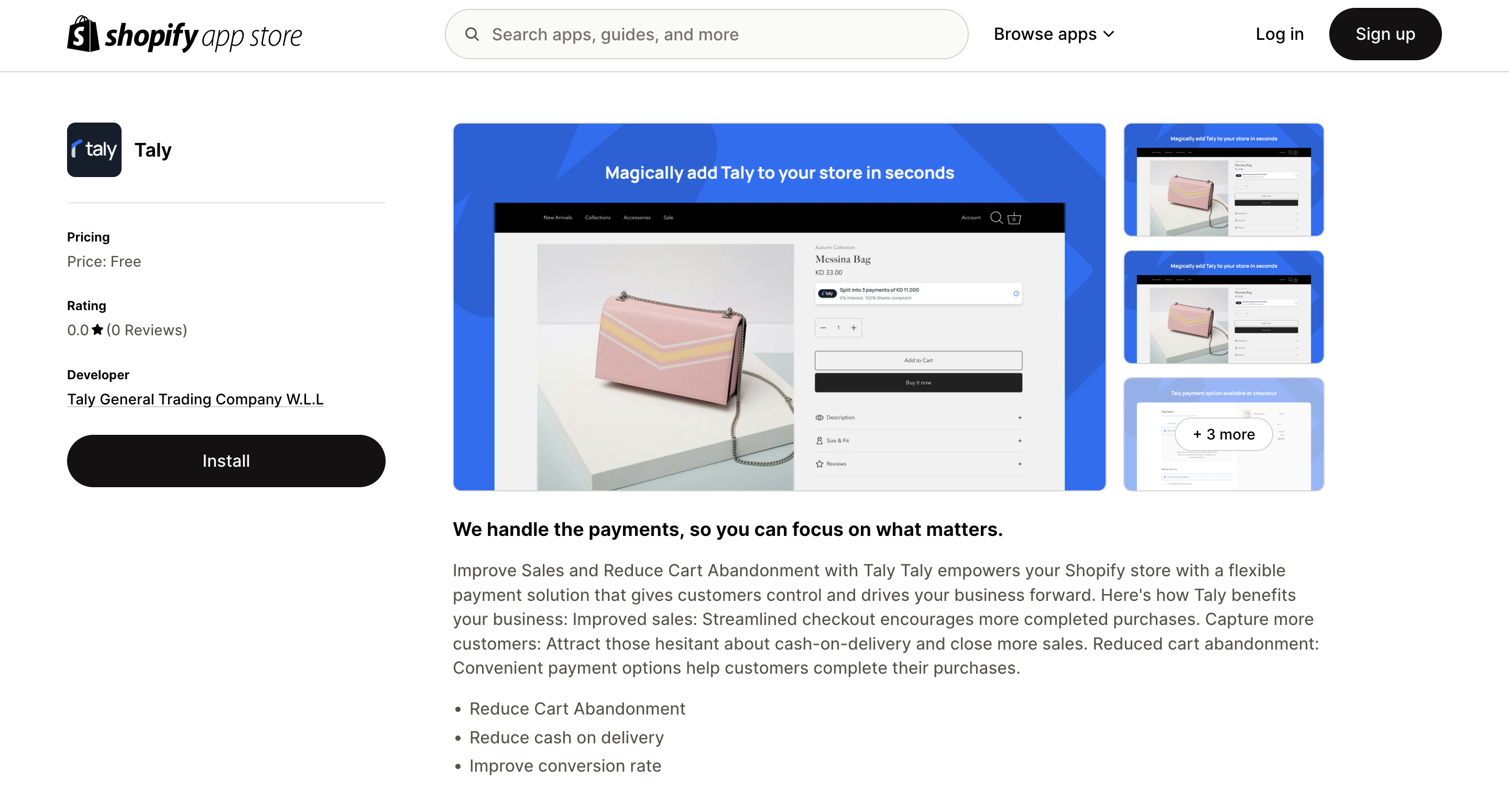
Step 1: Open the Taly App Page
Go to the Shopify App Store using this direct link: Taly at Shopify
Click the Install button.
(Refer to “Step 1 Install Taly”)
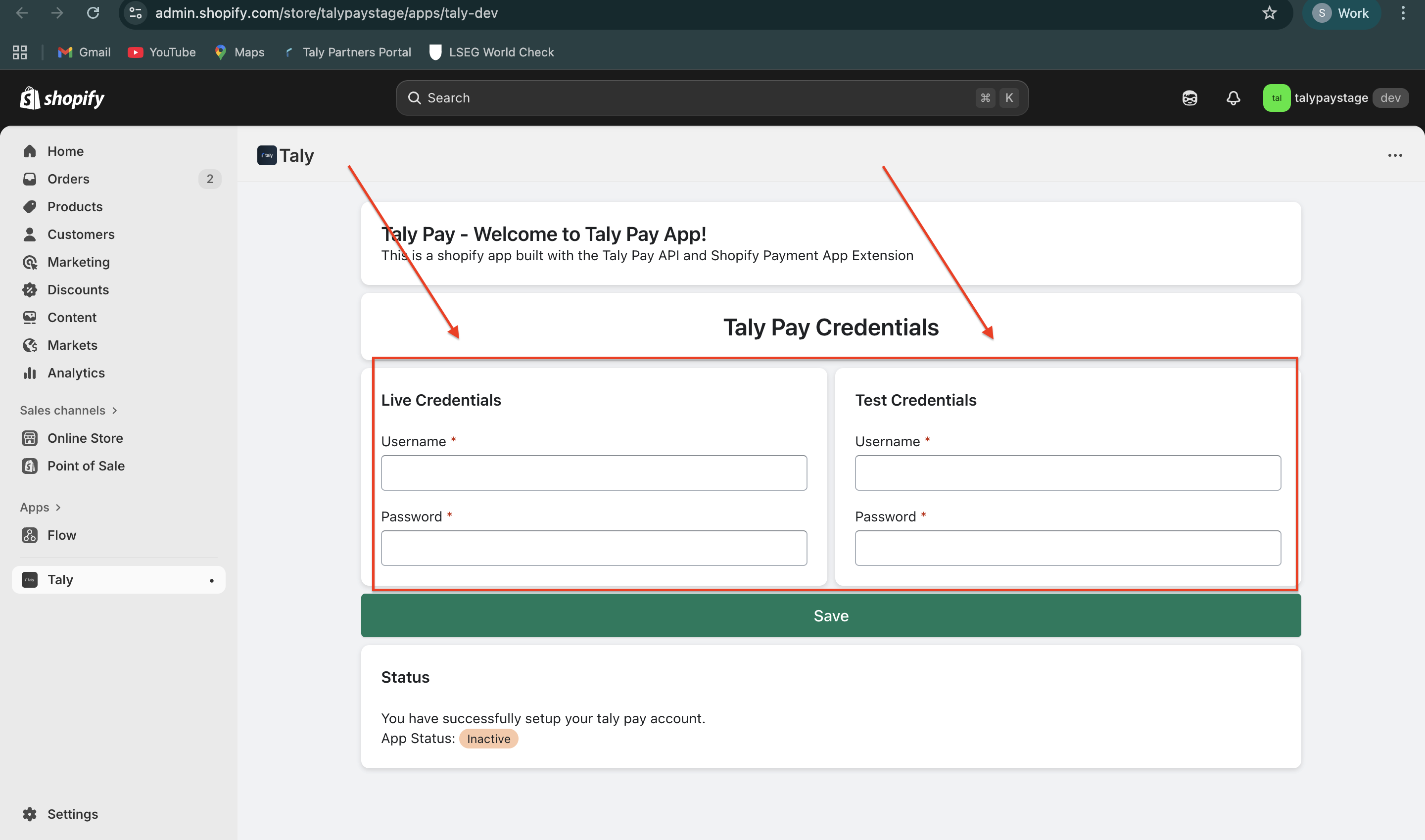
Step 2: Enter Your Taly Credentials
Username = APIs Merchant Key (Received by email from Taly)
Password: APIs Secret Key (Received by email form Taly)
Once the app is installed, you’ll be redirected to the Taly Credentials screen.
Enter the credentials provided by Taly under:
Live Credentials (for production use) - You'll get this details from Taly via email
Test Credentials (for testing environment) - You'll get this details from Taly via email
Click Save.
(Refer to “Step 2 Enter your credentials”)
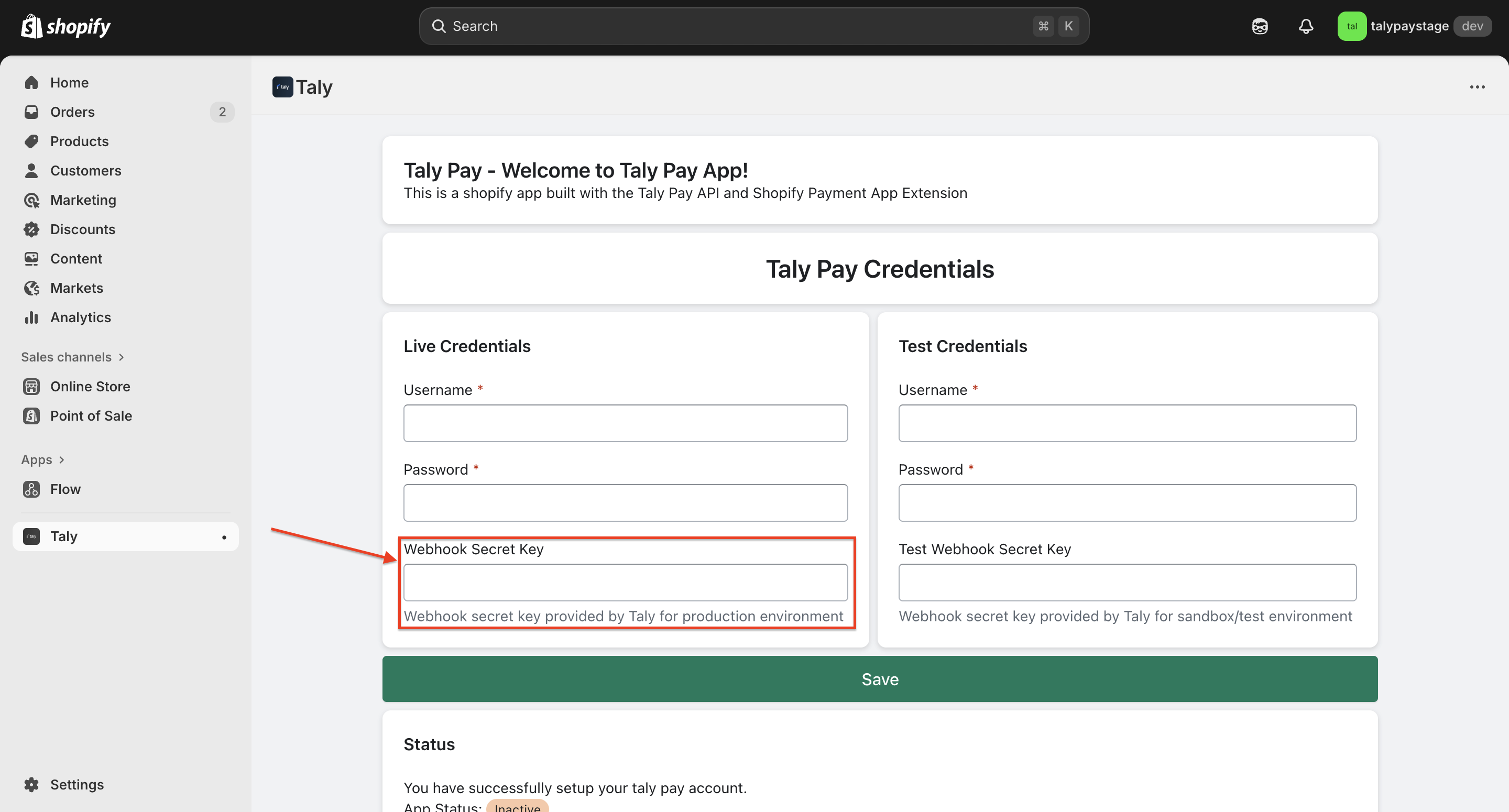
Step 3: Add your Secret Web hooks with Taly shared by email.
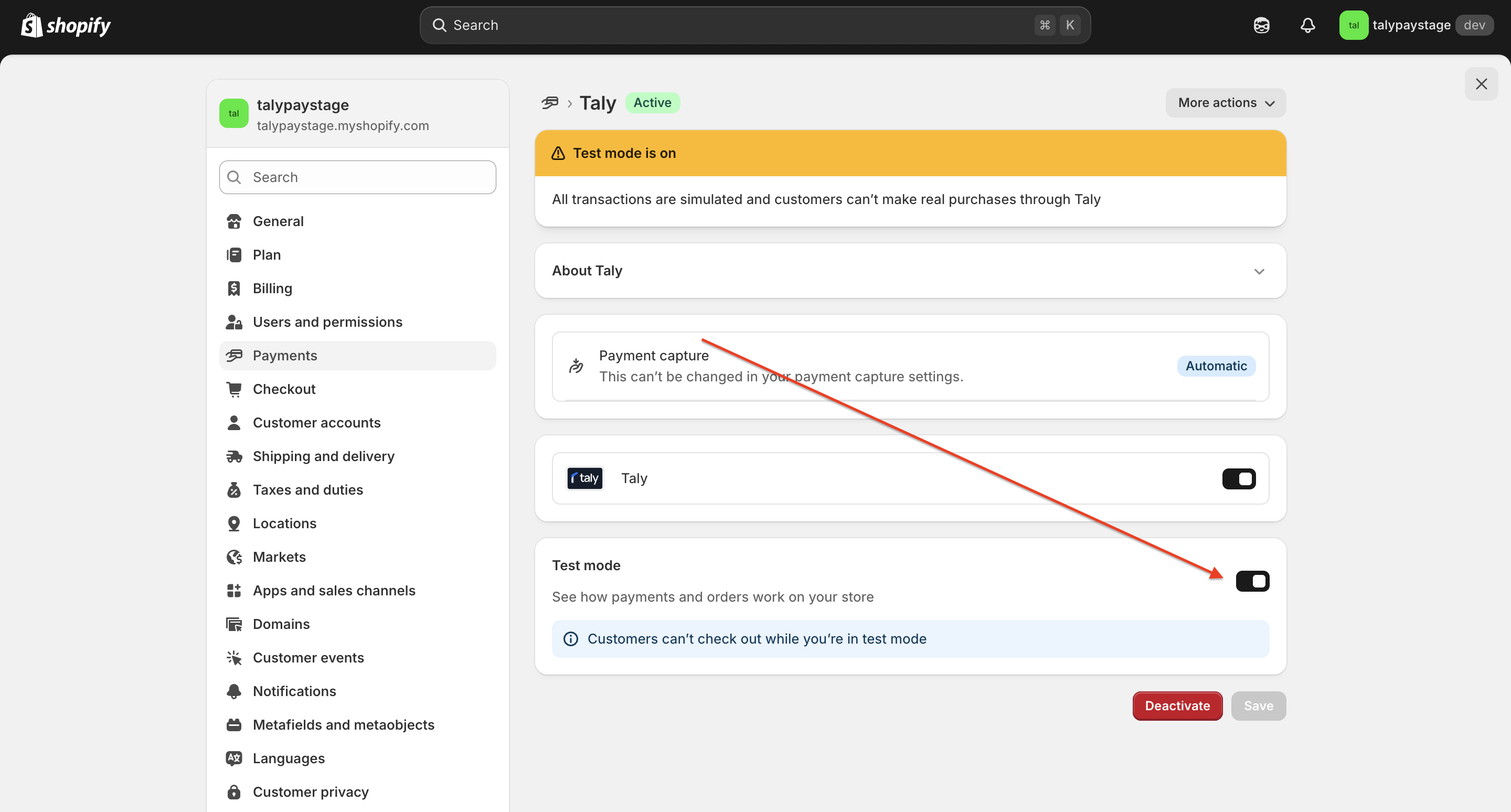
Step 4: Enable or Disable Test Mode (Optional)
If you want to test transactions before going live:
In your Shopify admin, go to Settings → Payments.
Locate to Taly under “Payment section”
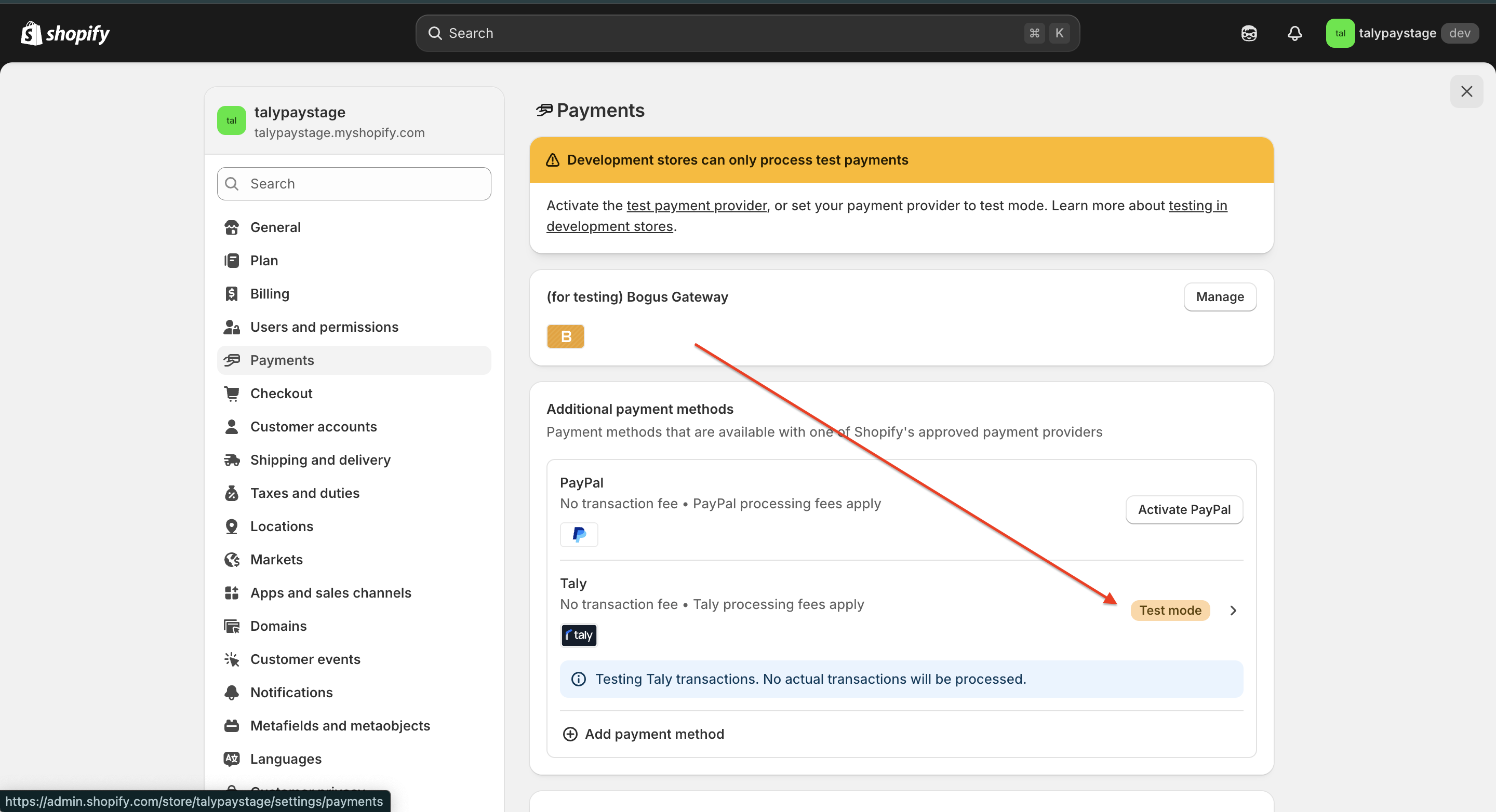
Click Test mode.
Toggle Test mode ON or OFF, depending on your needs.
Click Save.
(Refer to “Step 3 if you want to enable Test Mode click here.png” and “Step 3.1 turn on or off test mode.”)
Updated 6 months ago